Access Smart Gallery Hub from your phone
Smart Gallery Hub runs on your desktop, but its web UI is reachable from any device on the same network — or over the internet if you open one port on your router. Five minutes of setup.
1. Enable the server
Open Settings → Server, toggle Enable remote access on, leave the port at the default (5173), and turn HTTPS on.
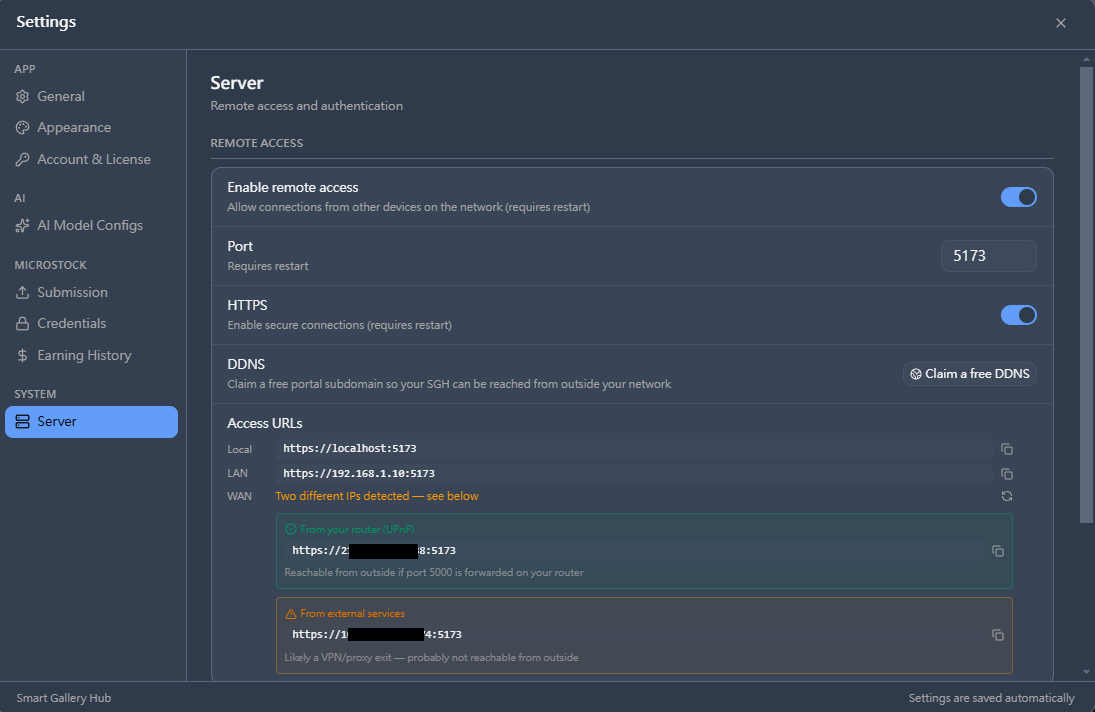
SGH lists the URLs you can reach the app on:
- Local —
https://localhost:5173(this computer only) - LAN —
https://192.168.x.x:5173(other devices on your home network) - WAN — your public IP, for access from outside your network
2. Set a password
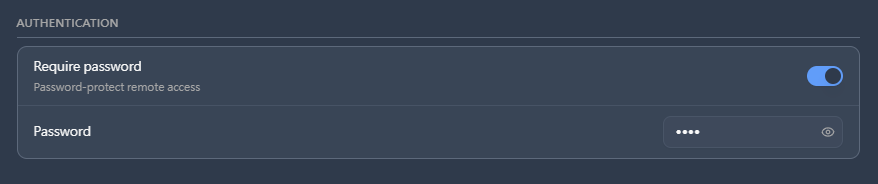
Scroll down to Authentication and toggle Require password on. Set any password. This is the only thing standing between the internet and your gallery — pick a strong one.
3. Restart to apply
SGH prompts to restart so the server changes take effect.
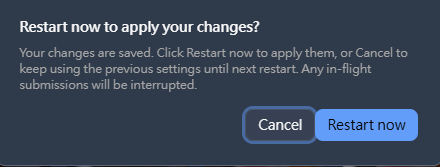
Click Restart now.
4. Pick the URL you’ll use
Back in Settings → Server, look at the Access URLs block again:
- On your home Wi-Fi — use the LAN URL.
- From outside (mobile data, coffee shop, etc.) — use the WAN URL highlighted as
From your router (UPnP):

For WAN access to work, the port (5173) must be forwarded on your router. SGH attempts UPnP automatically; if your router has UPnP disabled, you’ll need to add the rule yourself.
Optional: claim a memorable URL (Pro)
Pro users can claim a free DDNS subdomain so you don’t have to remember an IP address:
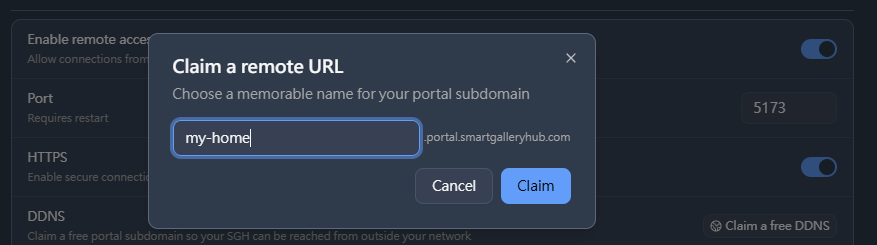
Pick a name (e.g. my-home) and your remote URL becomes https://my-home.portal.smartgalleryhub.com. The DDNS service updates the address automatically if your home IP changes.
5. Open the URL on your phone
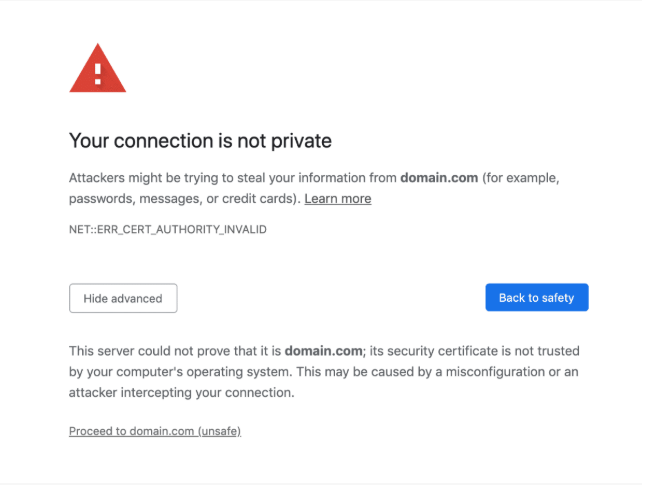
The first time, your browser will warn about the self-signed HTTPS certificate. This is expected — SGH generates a local cert on first run. Click Advanced → Continue (or your browser’s equivalent).
Then sign in with the password you set in step 2:
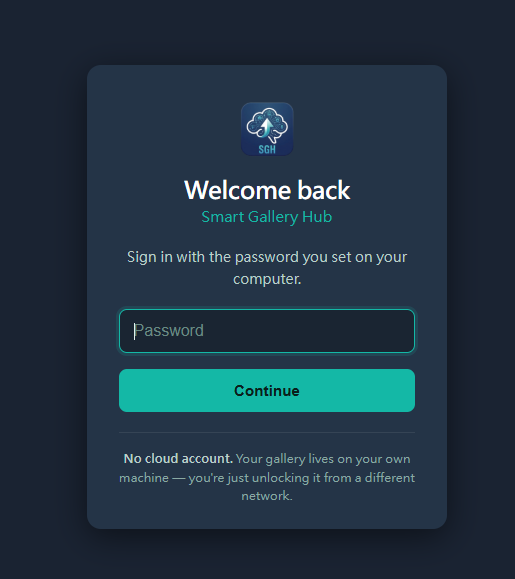
The “No cloud account” note matters: there’s no SGH server in the loop. The login goes straight to your home computer.
6. You’re in
The mobile workspace is the same library, the same content-type folders, and the same action bar. Tap a folder, tick images, run AI, submit — all from a phone, while your desktop does the heavy lifting:
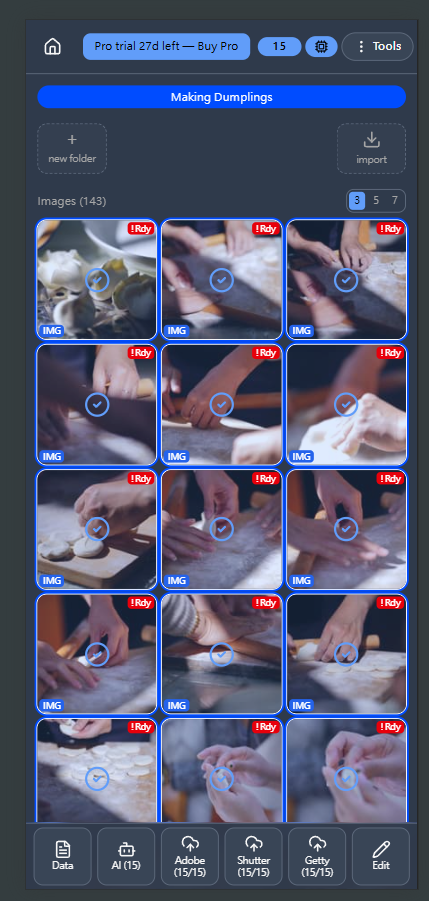
Remote access and DDNS are Pro features. Try Pro free for 30 days.